How to redesign a restaurant menu from a photo
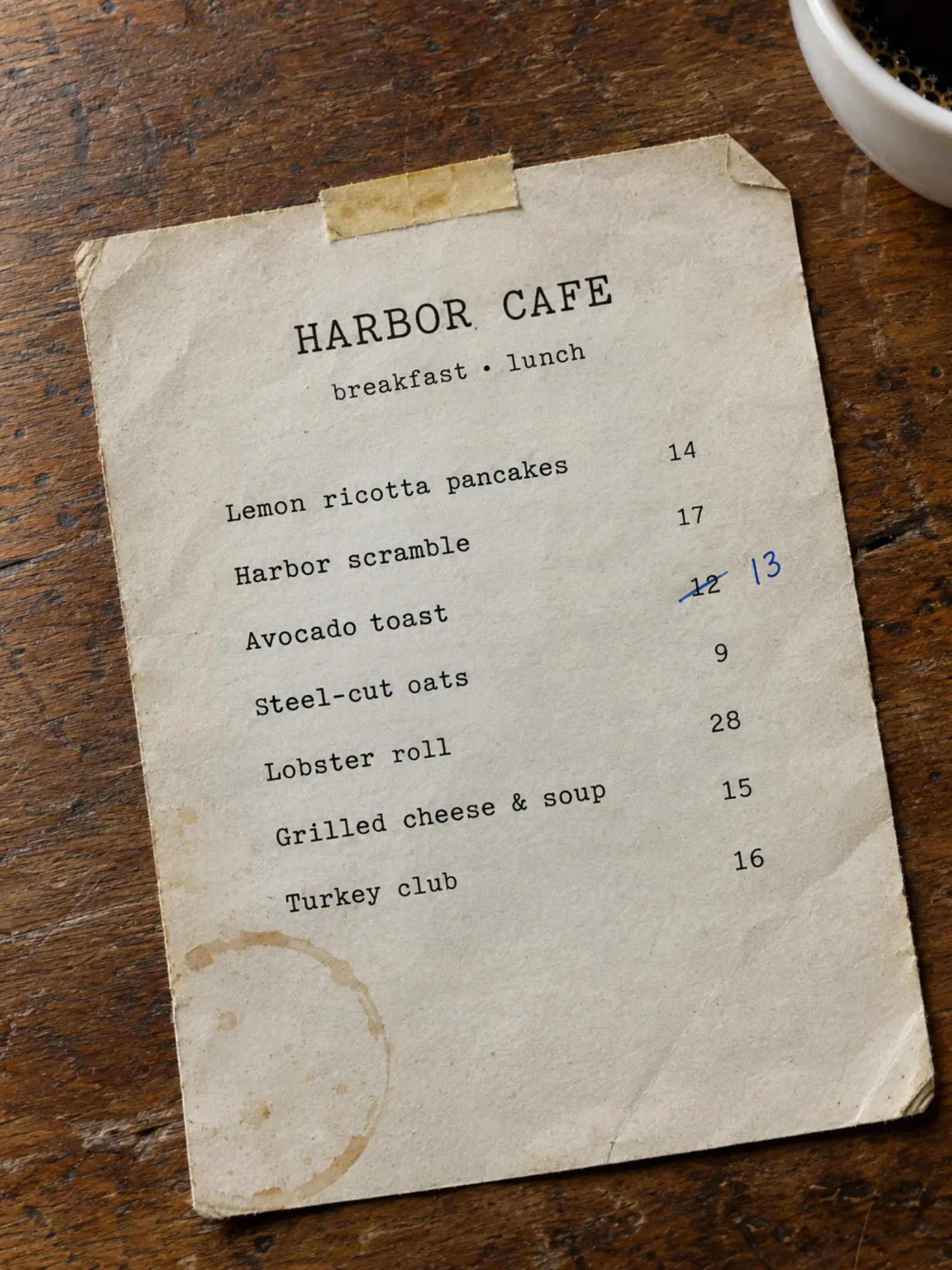
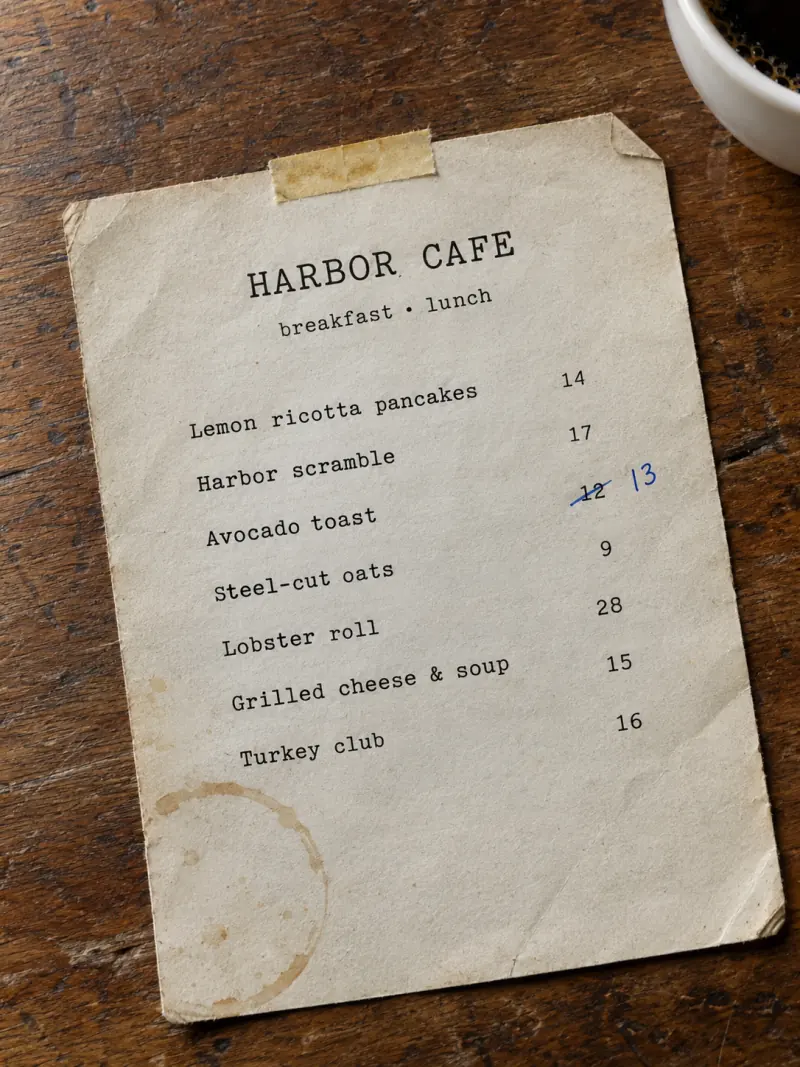
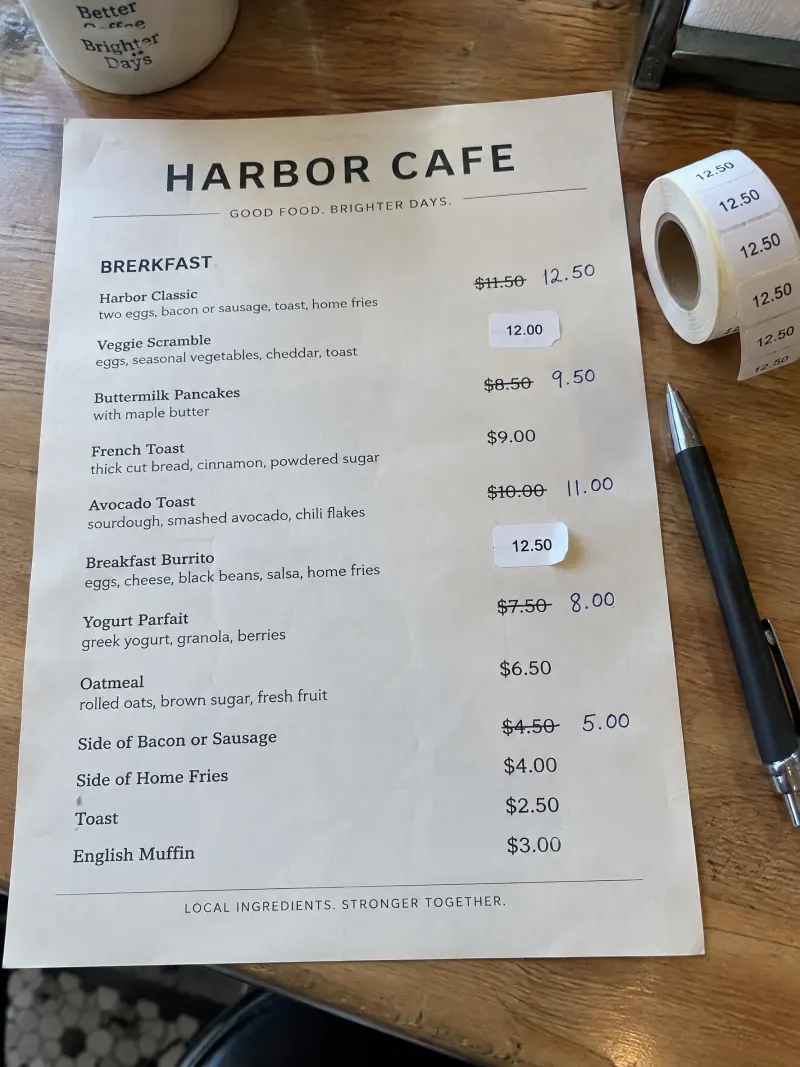
Your menu works, but it looks tired: coffee rings, taped corners, prices fixed in pen. A menu redesign usually means retyping everything into a menu maker or paying a designer. Here is how to get new menu pages from a photo of the menu you already have.
Updated
What you need
The menu you have, in any of these forms:
- A photo of each page. A phone photo taken flat, in good light, with the whole page in the frame, reads best.
- A PDF or image file of the menu.
- A spreadsheet (CSV, XLSX or XLS) with your items in rows, or the menu as text you can paste.
You don’t need an account to start. Reading your menu and your first 3 drawn pages are free, with a small mark on the pages (see plans).
Step by step
Bring your menu in
On a phone, tap Take photos and photograph each page. On a computer, pick your photos or PDF, or drop them on the page. The first time, you agree once to send your menu to the AI providers that read it.
Photos lose their location data before they leave your browser. Check the pages, then tap Read menu
Put the pages in the order guests read them, and take another photo of any page that came out blurry. Nothing has left your browser yet. When the pages look right, tap Read menu.
Check your list
MenuPress reads every category, item, description and price into one list. Items that need a look come first: a missing price, a price it couldn’t read, a possible duplicate. Fix them, then tap Looks right. Nothing is drawn before you check the list.
Flagged items come first. Choose Drawn pages and a style
Tap Choose a look, then Drawn pages. Pick one of six styles, or upload a photo of a menu whose look you like and confirm you have the right to use it as a reference.
Approve page 1, then draw the rest
Page 1 is drawn first and sets the look. If you like it, tap Draw the rest and every other page is drawn to match. If not, redraw page 1 or change the style before anything else is drawn.
Download, print or share
Your pages are US Letter. Download a PDF to print, or the page images for your website and social posts. With a plan, tap Get link & QR to put them online behind one link and one QR code.
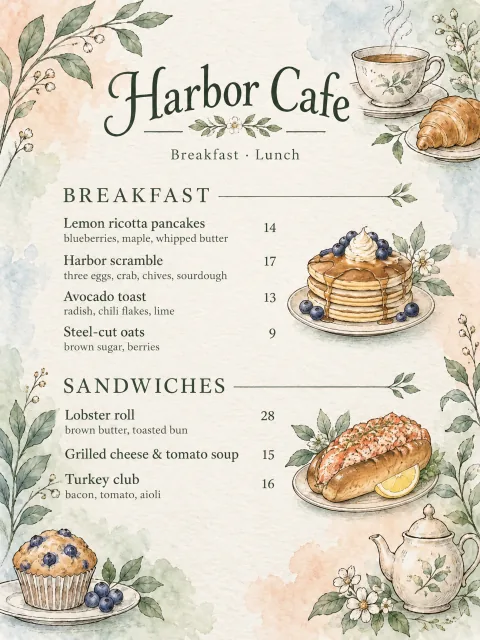
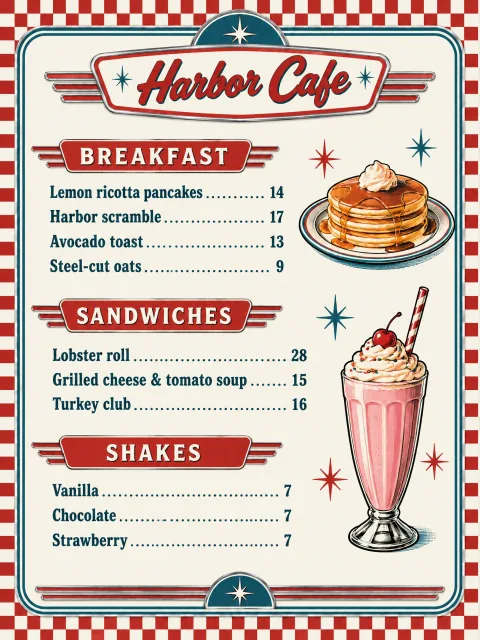
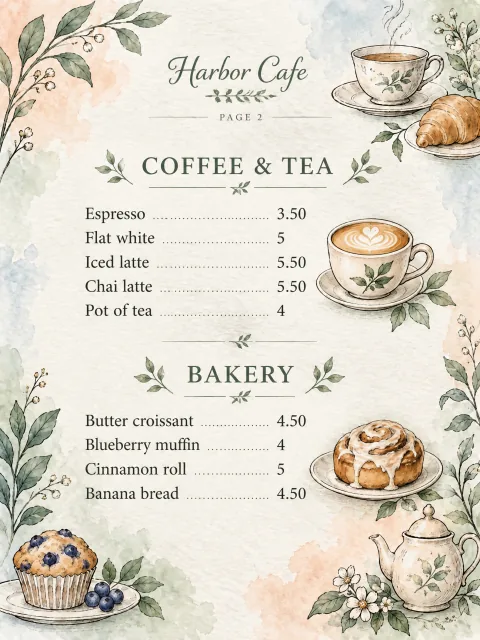
What changes and what stays
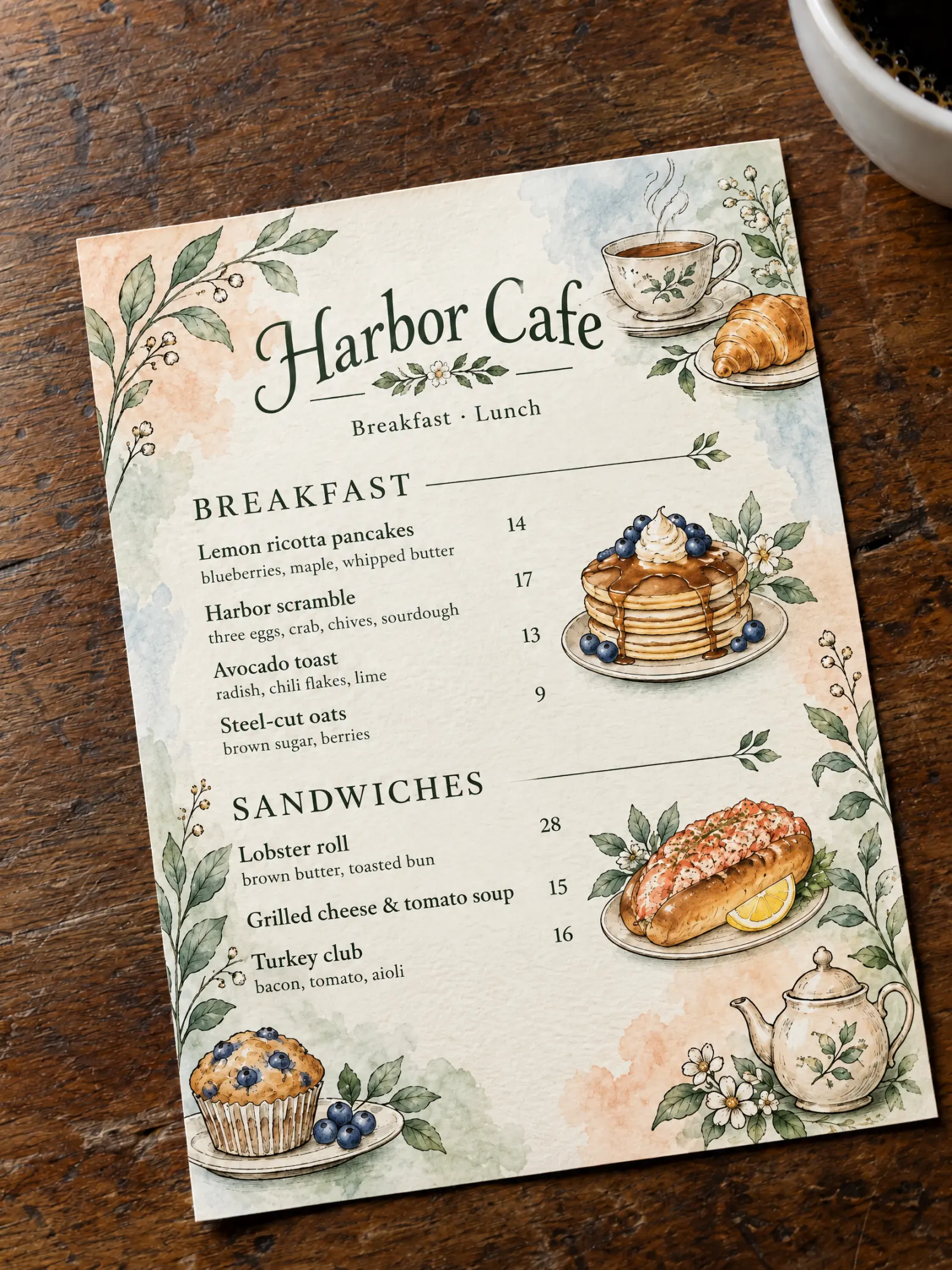
- Changes: the layout, the type, the colors and the drawings around your items.
- Stays: your items, descriptions and prices, exactly as you checked them in the list.
- Pages are drawn by AI, so read each page before you print it. If a page is wrong, redraw that page; the others stay as they are.
Want a web menu too?
The same list can also be a web menu: real text in a theme that fits any phone. It appears as soon as you pick a theme and uses no page credits. See how to make a QR code menu.
Tips
- Photograph each page flat and straight, without glare. Fold-out menus read best one panel at a time.
- Fix names and prices in the list, not on the pages: the list is what every page is drawn from.
- A menu with many items needs more pages. The page plan shows how your list falls on pages and what drawing costs before you start.
- When a price changes later, you don’t start over: see how to update menu prices without a new QR code.
Try it on your menu
No account needed to start. Reading your menu and your first 3 pages are free.
Bring your menu in